Syncing to Garmin
Your race plan. Your splits. On your Garmin.
Phone-free training and race-day pacing starts here. This guide covers connecting your Garmin account, syncing your Race Goals splits and training workouts, running a session with no phone in sight using Free Train, and racing yourself, a friend, or your race plan with Race a Delta. If you already use ROXFIT, update your app first to get access to these features.
1. Connecting ROXFIT to Garmin
ROXFIT connects to Garmin via Garmin Connect using a secure OAuth link. A one-time setup, then it's done.
What you need
- A Garmin watch
- A Garmin Connect account
- ROXFIT installed on your phone
Steps
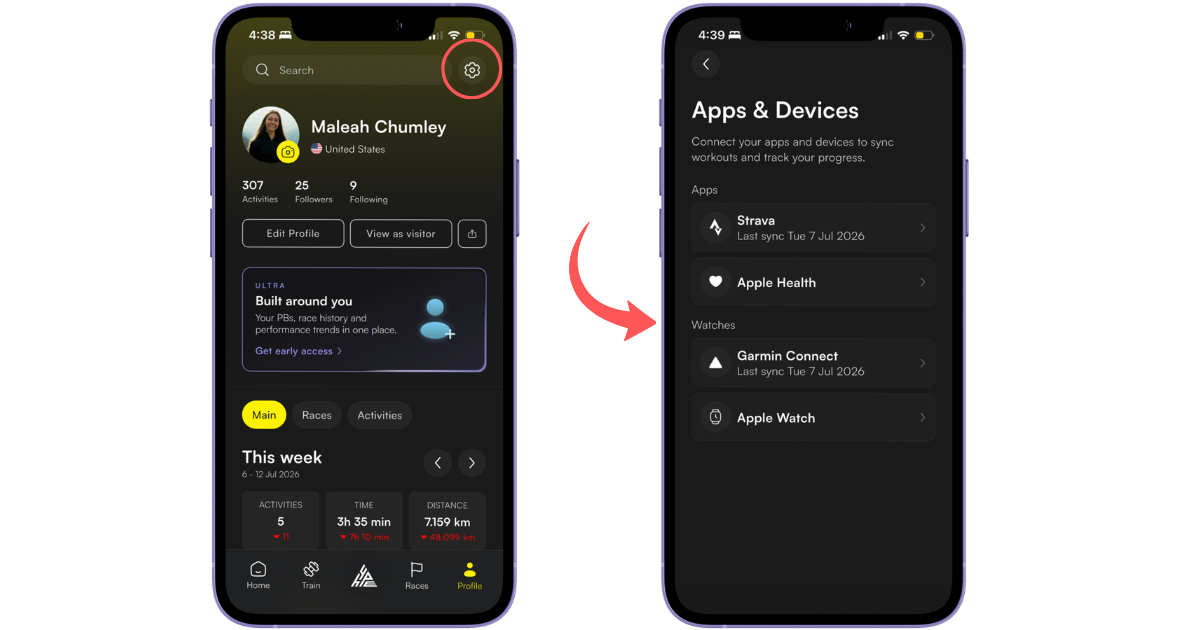
- Open ROXFIT on your phone.
- Tap the You tab in the bottom-right corner.
- Tap the settings cog in the top-right corner.
- Tap Connected apps and devices.
- Select Garmin.
- You'll be redirected to the Garmin Connect sign-in page.
- Log in with your Garmin Connect credentials.
- Make sure both permission toggles are switched to ON (both are needed).
- Tap Agree to authorise ROXFIT.
- You'll be redirected back to ROXFIT with a confirmation.
2. Installing the ROXFIT app on your Garmin
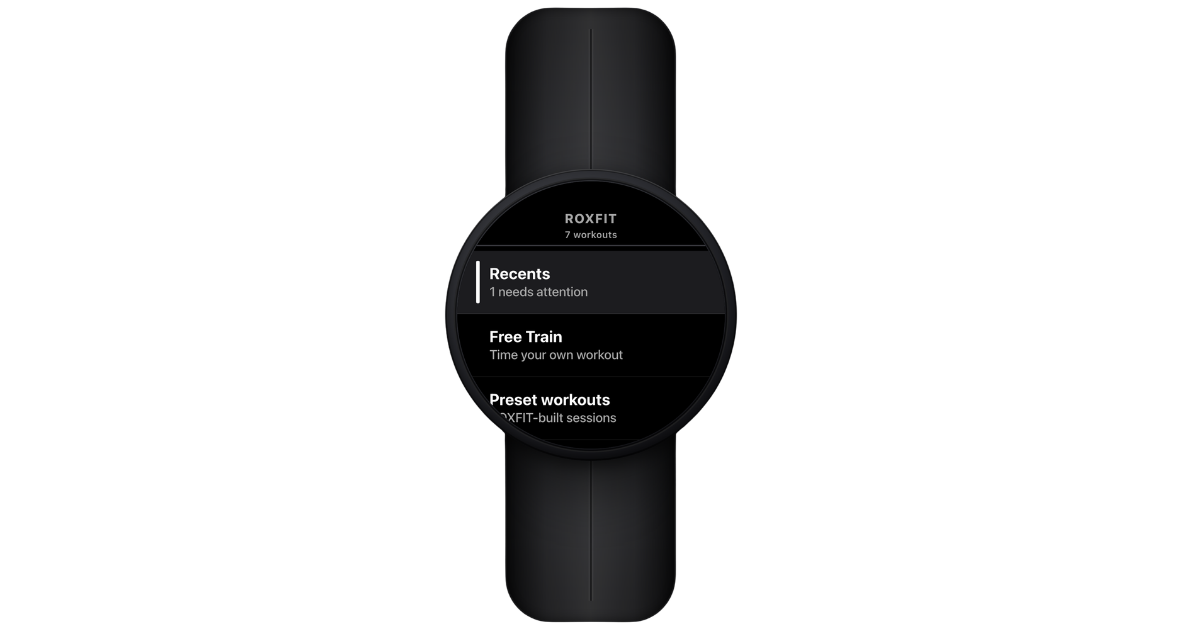
The ROXFIT app is a full Connect IQ app. It gives you a home screen, workout list, player, and Free Train mode on the watch itself.
Steps
- Open the Garmin Connect IQ app on your phone (or visit the Connect IQ Store).
- Search for ROXFIT.
- Tap Install.
- Wait for the app to sync to your Garmin over Bluetooth.
- On your watch, open the app list and confirm ROXFIT is there.
3. Settings on your watch (read this before your first workout)
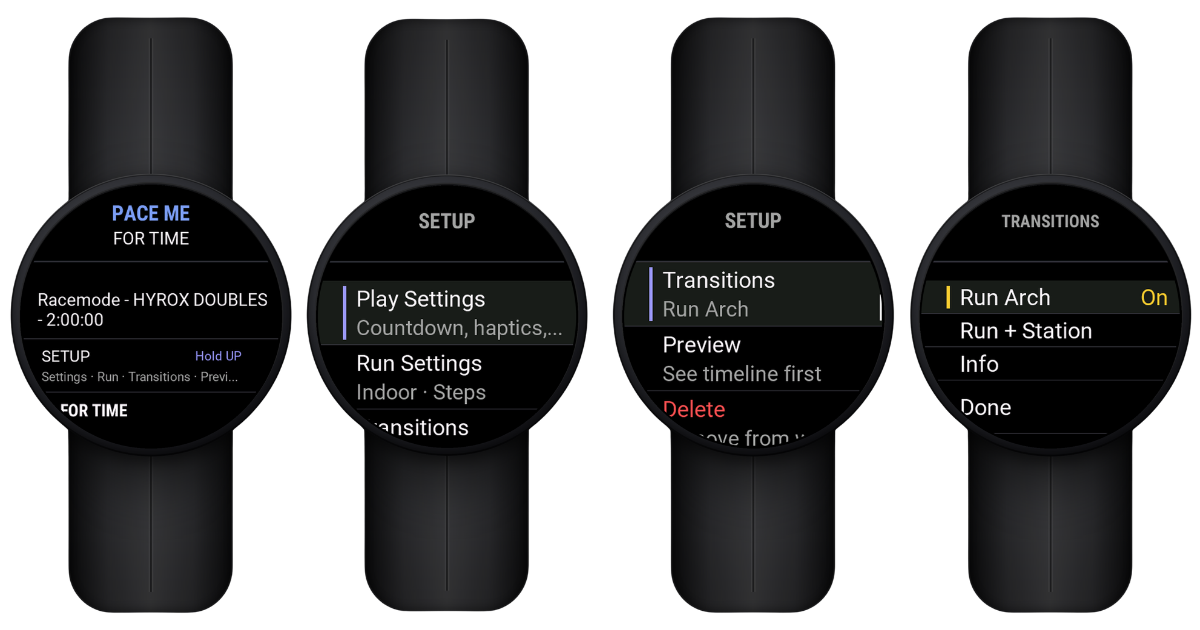
These live on your Garmin, not on your phone - find them under Settings > Workout options on the watch (hold UP during setup, or from the general Settings menu). Get them wrong and your race day is worse than it needs to be, especially the lap button.
Where
| Option | What it does |
|---|---|
| Outdoor | Distance from live GPS. Best for outdoor training and races. |
| Indoor | Distance from watch steps. Use for indoor tracks and stations without GPS. |
| Treadmill | Timer only, no distance tracking. Press lap yourself. |
Auto-lap
| Option | When to use |
|---|---|
| On | Garmin auto-laps at each running distance. Good for per-km splits in outdoor training with GPS. |
| Off (recommended) | Manual lap only. Prevents auto-lap interruptions during transitions - essential for indoor races. |
Transitions (HYROX race workouts only)
This controls which arches you lap at during a HYROX race workout.
| Option | How it works |
|---|---|
| Run Arch Only | Paces you against your planned delta. ROX OUT only appears if you're behind your plan. If you're ahead, the watch skips ROX OUT and moves you straight into the next run. |
| Station + Run | ROX IN and ROX OUT appear at every station, whatever your pace, and you lap at each one. Use this if you want to see ROX OUT every time. |
How Run Arch Only works. It doesn't track exactly where you are on the course, it paces you against your planned delta. If you're ahead of your delta, the watch skips ROX OUT: when you lap out of a station, it assumes you're already heading to the next run, so you won't double lap at the ROX OUT arch and skip a run by mistake. If you're behind your delta (longer on the station than planned), the watch shows ROX OUT and you press lap at the arch to start the next run. This is also why ROX OUT often doesn't appear when you flick through the screens to test it: you're moving faster than your plan, so the watch treats you as ahead.
The setting saves as soon as you pick it, there's no Done button to press.
4. Syncing a Race Goals workout
Race Goals is your race plan. When it's on your wrist, you see at every station whether you're ahead or behind your target, live.
Steps
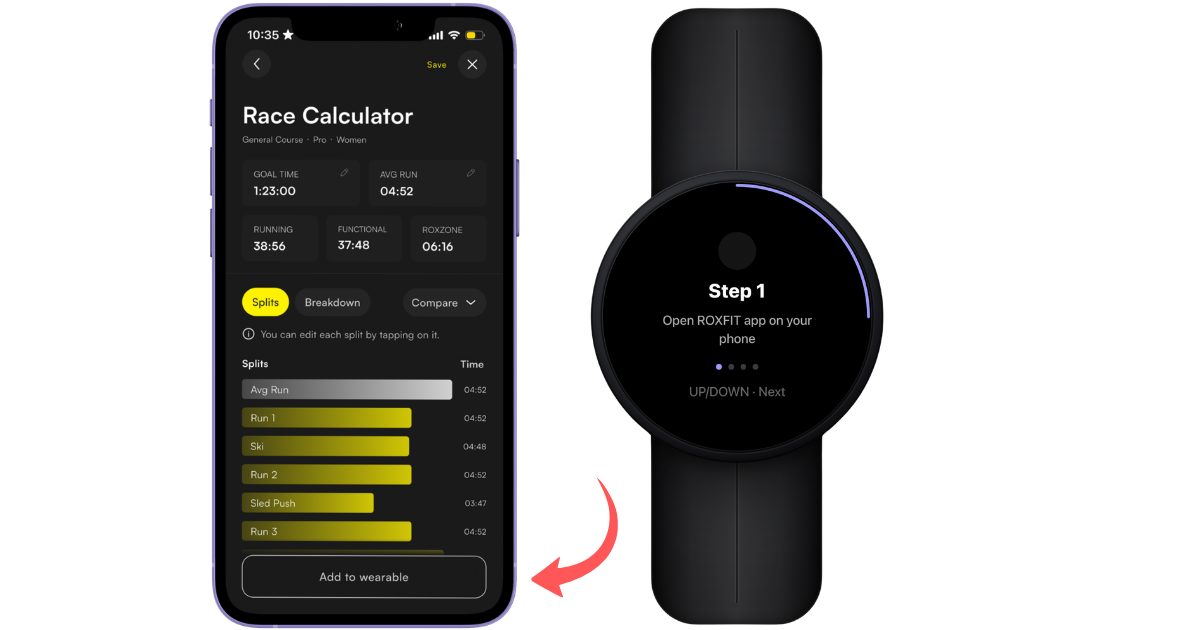
- On the Race Calculator page, tap the event you want to race.
- Set up the race target you want to achieve. Your goal time, station splits, and run pace. This is the target your watch will race you against.
- Tap Add pacing to wearable.
- Select Garmin from the device list.
- Wait for the confirmation: "Workout synced to [Device Name]!"
The workout goes straight to your Garmin over Bluetooth. Keep your watch within range of your phone during the sync.
5. Syncing a training workout
Any ROXFIT workout - training session, custom build, or plan workout - syncs to Garmin the same way.
Steps
- Open the workout in the ROXFIT app on your phone and tap Get started.
- Under Selected device, check your watch is selected. If it isn't, tap Change, choose your watch, then tap Continue.
- Tap Let's go.
- Tap Sync to Garmin.
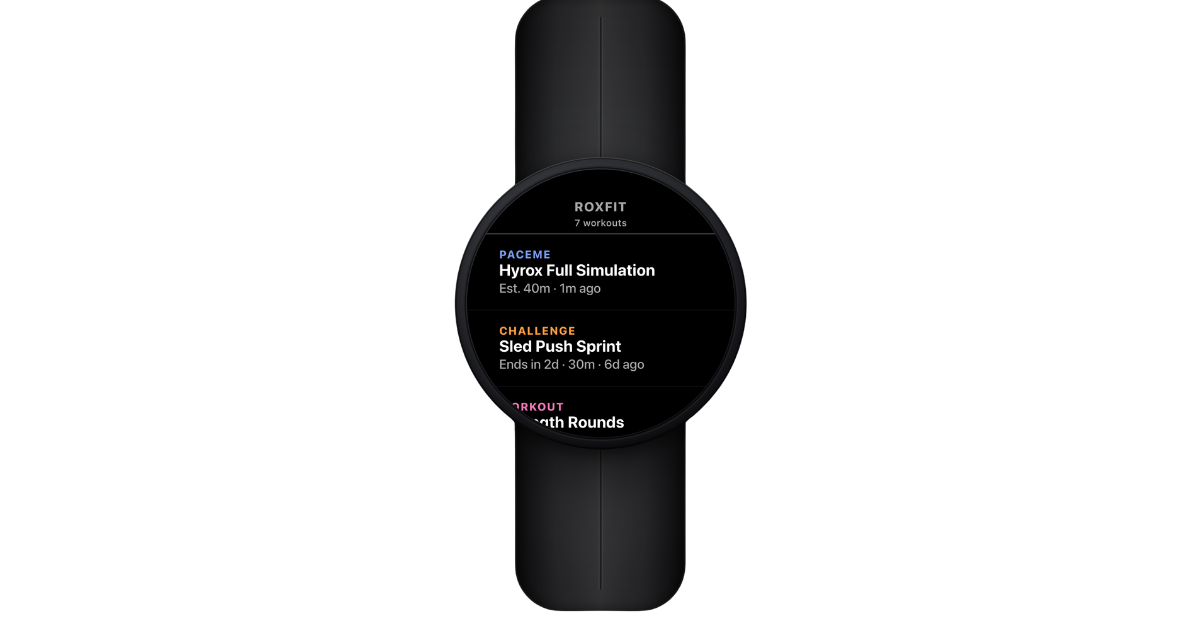
Synced workouts appear in your Garmin's ROXFIT workout list automatically. You can have multiple on the watch at once.
6. Free Train: starting a session from your Garmin
Free Train is the watch-native quick start. Use it when you don't have your phone, haven't synced a workout, or just want to get going. Structured workouts (Just Train, Race a Delta) still need to be set up on the phone and synced first - Free Train is the only session type you can start with the phone out of reach.
Steps
- Open the ROXFIT app on your Garmin.
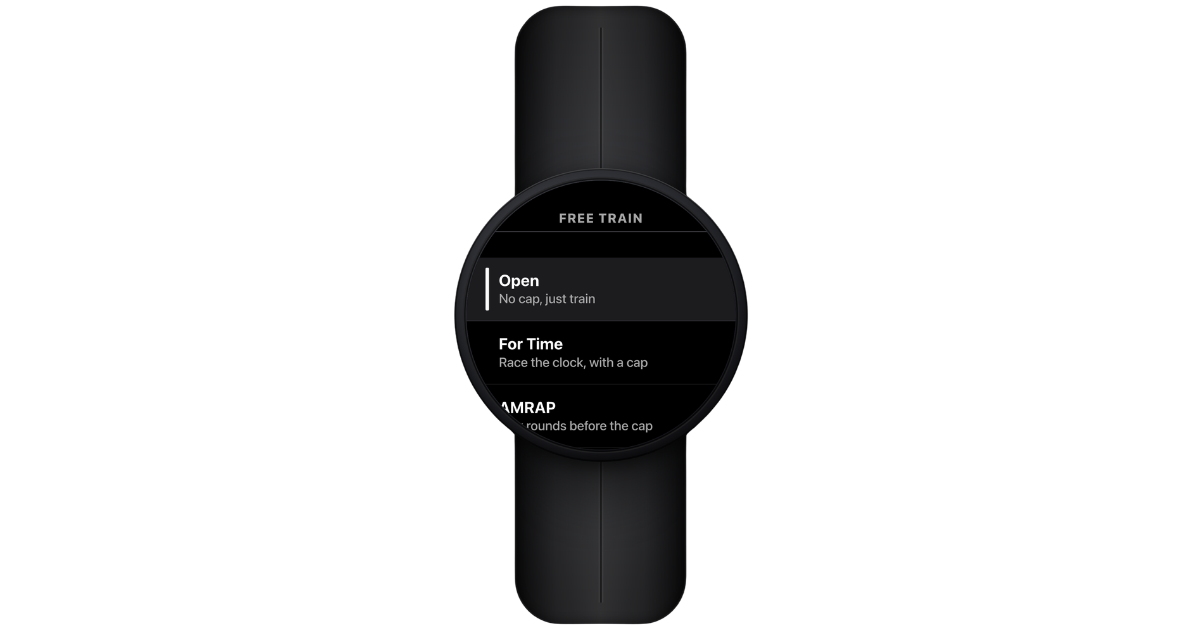
- Scroll to Free Train using the DOWN button and select with START.
- Pick a preset block:
- Open. An open-ended session with no set target.
- For Time. Finish a target as fast as you can. Set a time cap.
- AMRAP. As many rounds as possible. Set total duration.
- EMOM. Every minute on the minute. Set interval length and number of intervals.
- On/off. Work and rest intervals. Set work, rest, and rounds.
- Configure the settings for your block using UP/DOWN to adjust and START to confirm. Defaults work for most sessions.
- Press START to begin.
The watch runs as a timer with block-specific haptics (interval, round, work/rest cues).
After Free Train, the effort syncs back to your phone as a timer-only activity. You can then:
- Match it to an existing ROXFIT workout so it counts toward streaks.
- Enter splits manually.
- Leave it as a generic Free Train effort.
7. Running your workout
Steps
- On your Garmin, open the ROXFIT app.
- Select your synced workout, or start a Free Train block.
- Press START to begin.
Button controls during the session
| Button | What it does |
|---|---|
| START/STOP | Pause and resume the workout |
| LAP (back button on most models) | Advance to the next exercise or mark a split |
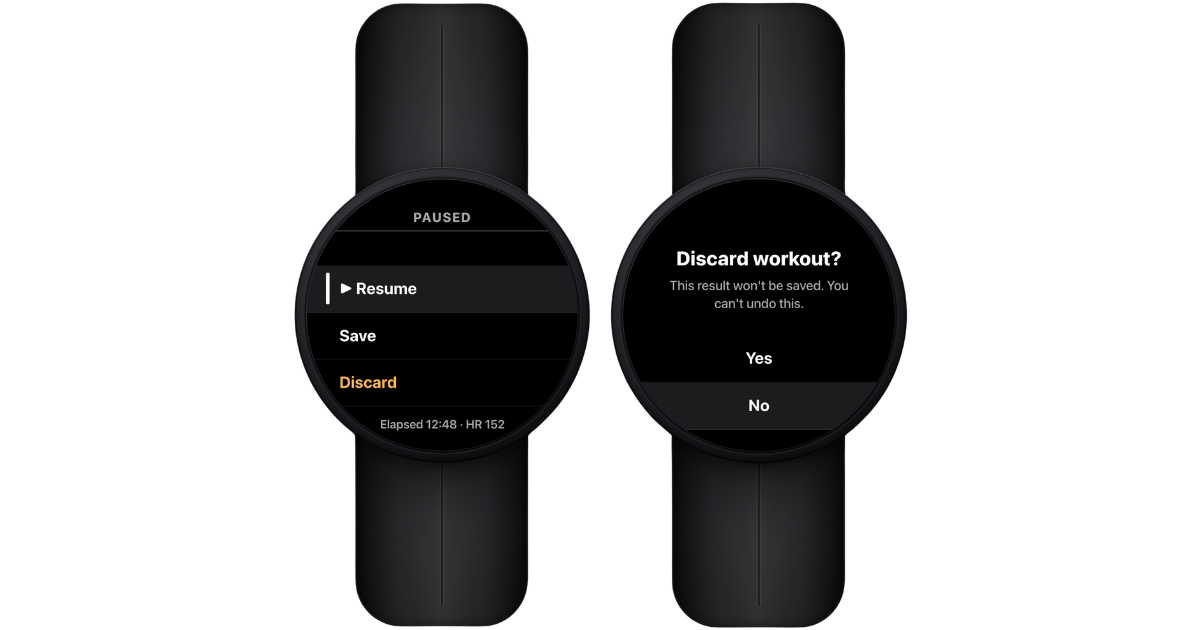
| BACK | Long-press to end the session, then choose Save, Discard, or Resume |
Lap button guide (HYROX workouts)
Set your Transitions mode in Settings > Workout options on your watch (see section 3).
| Transitions mode | When to press lap |
|---|---|
| Run Arch Only | Lap as each prompt appears. ROX OUT only appears if you're behind your plan, so if you're ahead you won't see it. |
| Station + Run | Lap at ROX IN and ROX OUT at every station, as well as each station and run |
| Standard workouts | When each exercise is complete |
Transitions only apply to HYROX race workouts. In a standard or custom workout, the lap button moves you to the next step. If you've built a workout with Roxzone as its own step, you'll need to lap for that step too.
Important: you cannot edit splits after the workout is complete. If you forget to lap, that split is gone. Practise the button rhythm in training.
8. Race a Delta: race yourself, a friend, or Race Goals
Race a Delta runs you against a target. Three options, set on your phone before you sync:
- Yourself. Race your own previous result. The watch shows whether you're ahead or behind your last attempt at every station.
- A friend. Race a friend's published workout. Same logic, against their splits.
- Race Goals. Race your Race Goals plan. The watch shows the live delta against your station-by-station targets.
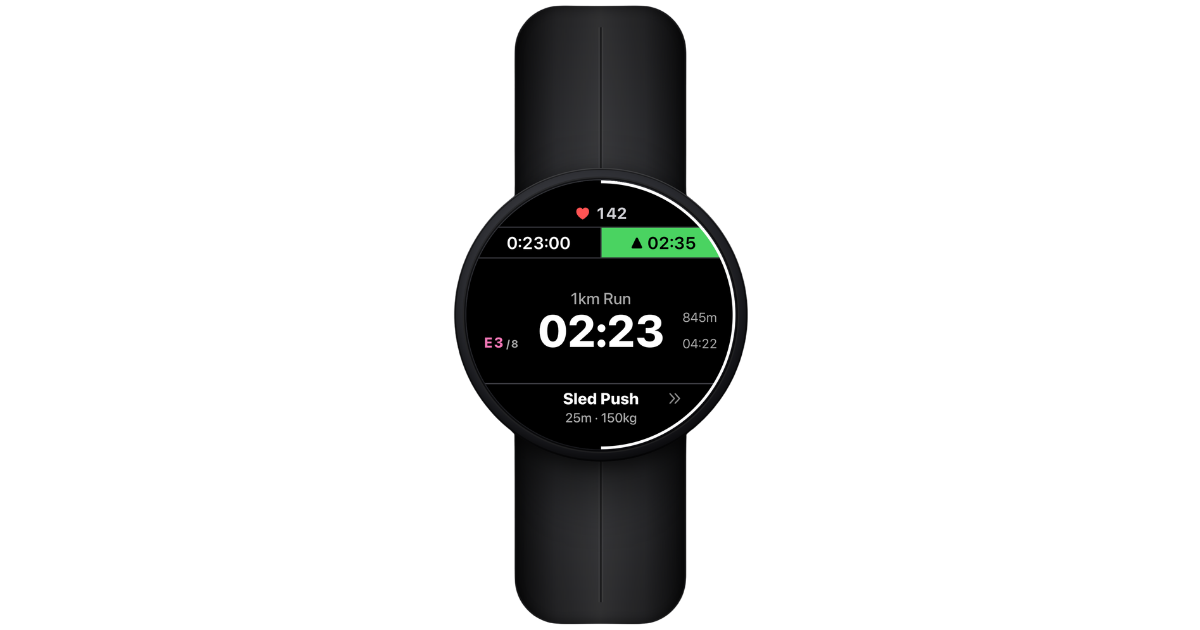
During the workout, the delta appears as a live readout and as haptic cues. A pattern when you're ahead, a different pattern when you're behind - you can pace yourself without looking at the screen.
If you don't pick an opponent, the player runs in Just Train mode. Same workout, no delta. Use Just Train when you want to train the session without racing.
9. In-workout: metrics, transitions, music, and haptics
Overview metrics: total time, heart rate, pace, target pace, pace delta, current exercise, next up.
Run to station transitions: the player handles the switch between running and station work, including Roxzone transitions, so your splits are recorded correctly (based on your Transitions setting).
Music: on Garmin devices with on-watch music (some Fenix, Forerunner, and Venu models), ROXFIT hands off to the Garmin music player. Devices without on-watch music will still play from your paired phone.
Haptics
- Ahead/behind. Distinct vibration patterns let you pace by feel.
- Splits and segments. Vibration when you hit a split or move into the next segment.
- Free Train blocks. Interval, round, and work/rest cues for AMRAP, EMOM, and on/off.
10. Viewing your results
When you finish, the watch shows your total time, average heart rate, splits, and (for Race a Delta) your final delta against the target.
Save your workout on the watch. Do not tap Discard - that permanently deletes the session, and that data is what syncs back to ROXFIT.
Note: you cannot edit splits after completion. If you missed a lap during the session, it can't be added retrospectively.
11. Sync back to ROXFIT
Results sync from your Garmin back to ROXFIT over Bluetooth. Nothing manual.
The activity also lands in Garmin Connect as normal (standard Garmin behaviour), so your Garmin history stays intact. Results can also reach ROXFIT through Garmin Connect, so if one is missing, check the Sync Queue and whether the activity is in Garmin Connect.
Sync Queue
Completed workouts are kept on your watch until they've successfully synced. Check status in the ROXFIT Garmin app under Sync Queue:
- Pending. Waiting for a sync window.
- Syncing. In progress.
- Synced. Delivered to your phone.
- Failed. Retry as many times as needed - nothing is deleted until it's synced.
Unsynced workouts wait in the Sync Queue until they sync, so even if you're without your phone on race day, your data is safe. Don't reinstall the app, clear storage or reset your watch while a workout is still unsynced. Restarting is fine.
What syncs to ROXFIT
- Exercise splits and lap times per station
- Running pace per segment
- Heart rate throughout
- Total workout duration
- Roxzone times (HYROX workouts)
- Delta vs target (Race a Delta workouts)
- Garmin device info (e.g. "Garmin Fenix 7")
12. Connection and sensor states
If the watch shows one of these, the workout keeps running but some data may be missing until it recovers.
| State | What it means |
|---|---|
| GPS searching | Outdoor location not yet locked. Pace and distance use cadence until GPS catches. |
| Heart rate lost | The wrist sensor lost contact. Tighten the strap. |
| Phone disconnected | The watch is out of Bluetooth range. The workout keeps running; results sync via the Sync Queue next time you're in range. |
13. Troubleshooting
| Issue | Fix |
|---|---|
| Can't connect Garmin | Make sure you're logged into the correct Garmin Connect account and both permission toggles are ON. Try disconnecting and reconnecting from Connected apps and devices. |
| ROXFIT app not on watch | Open Garmin Connect IQ, confirm ROXFIT is installed, and sync your watch. |
| Workout not appearing on watch | Keep your watch within Bluetooth range. ROXFIT queues and delivers when it reconnects. |
| Results not syncing back | Open the ROXFIT app on your watch, check Sync Queue, and make sure Bluetooth is on. |
| Free Train effort not matched to a workout | Open the effort on your phone, tap Match, and select the ROXFIT workout it belongs to. |
| Delta not showing in Race a Delta | Make sure the opponent (yourself, friend, or Race Goals) is selected on the phone before syncing. |
| Auto-lap interrupting transitions | Turn off Auto-lap in Workout options on your watch. |
| Missed a lap mid-workout | Splits can't be edited after completion. Practise the button rhythm in training. |
